Dopesplay Lapdock Review 2026: Can a Phone Really Replace a Laptop?
A source-backed Dopesplay lapdock review: touchscreen specs, battery life, Samsung DeX setup, real trade-offs, and how it compares to a traditional laptop.
How the Dopesplay lapdock works with your phone, mini PC, or console
- How the Dopesplay lapdock works with your phone, mini PC, or console
- Setting up a Dopesplay lapdock step by step
- Insider tips for getting the most out of a portable lapdock setup
- Common mistakes to avoid when buying a lapdock
- Dopesplay lapdock models compared
- Alternatives worth a look before you decide
- What to look for when buying a portable lapdock
If you have ever wanted to turn a phone, mini PC, or game console into a full workstation without carrying a laptop, this Dopesplay lapdock review breaks down exactly how the touchscreen, battery, and Samsung DeX setup perform for real travel and remote-work use cases.
Key Highlights
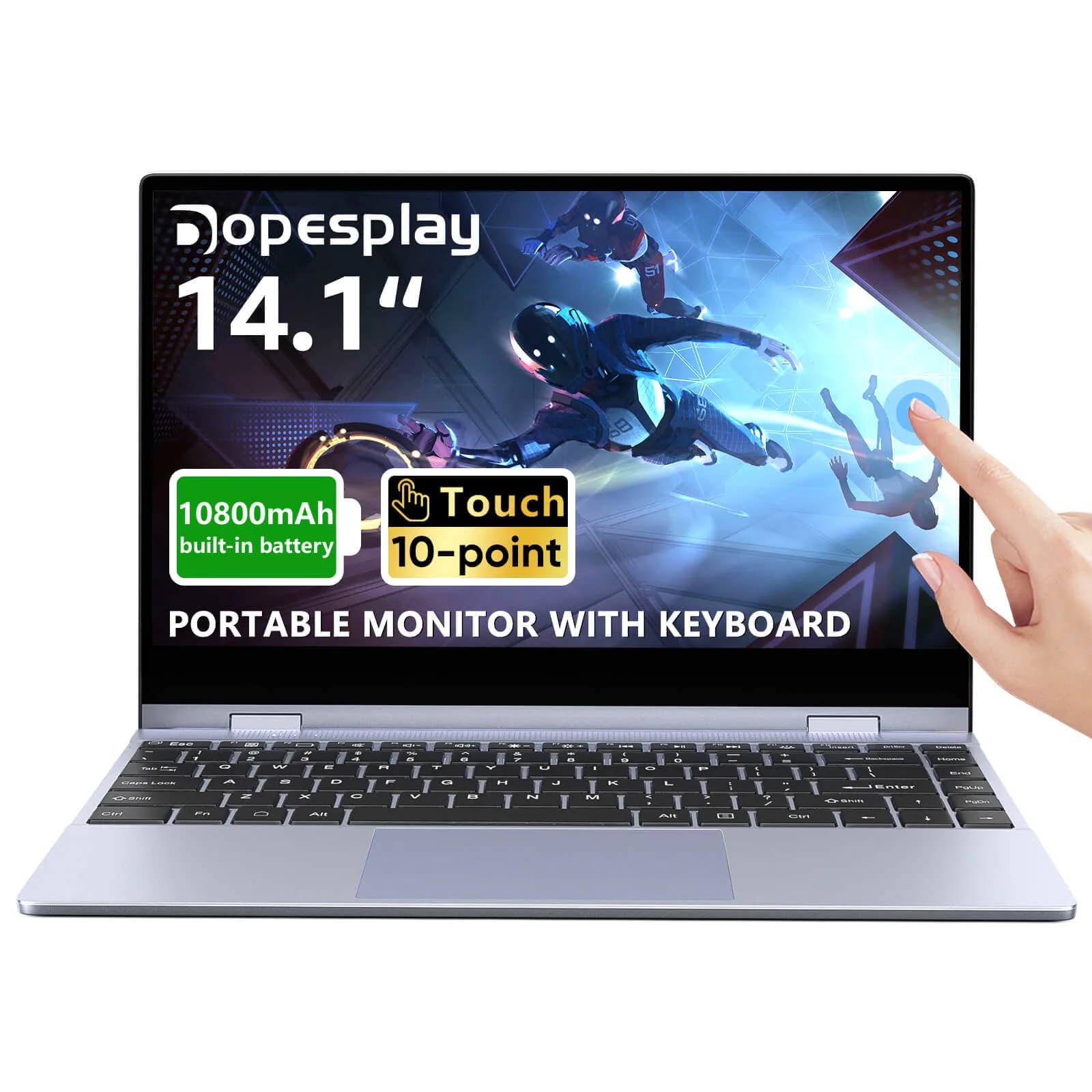
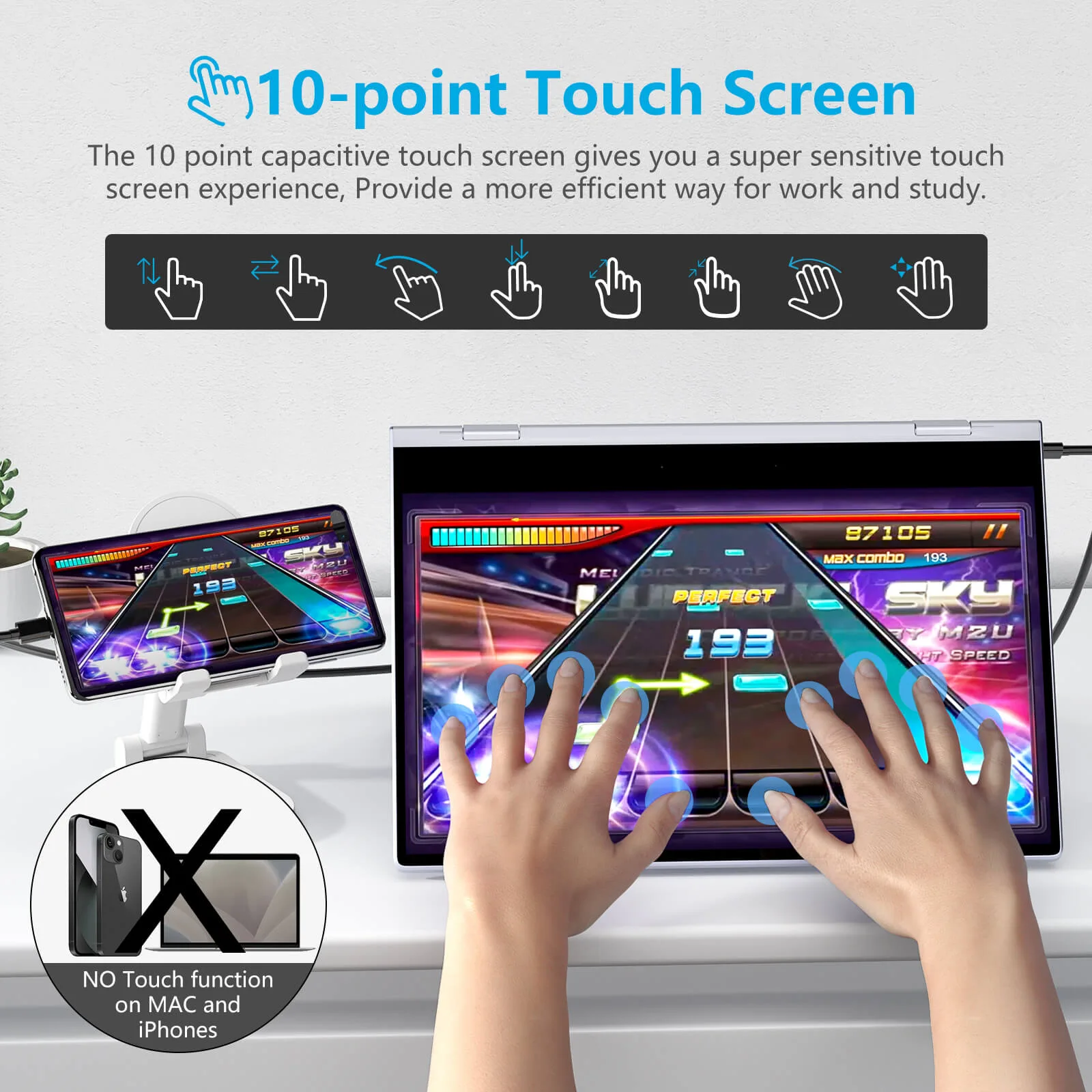
- 14.1-inch 1080P FHD IPS touchscreen with 10-point touch, an integrated QWERTY keyboard, and a trackpad built in.
- Built-in battery options from 5000mAh to 10800mAh, with the larger pack rated for 4-5 hours of continuous video playback.
- Works with Samsung DeX, switching a compatible Galaxy phone into a windowed desktop layout in seconds.
- USB-C with DisplayPort Alt Mode and HDMI cover laptops, mini PCs, and consoles like PS5, Xbox, and Switch.
A capable phone-to-desktop lapdock for travel and light productivity, not a laptop replacement for heavy workloads.
The Dopesplay DR148 pairs a 14.1-inch 1080P touchscreen with a built-in keyboard, trackpad, and 10800mAh battery, so a single USB-C or HDMI cable is often the only thing standing between your phone and a desktop-style workspace.
Check Current Price at DopesplayHow the Dopesplay lapdock works with your phone, mini PC, or console
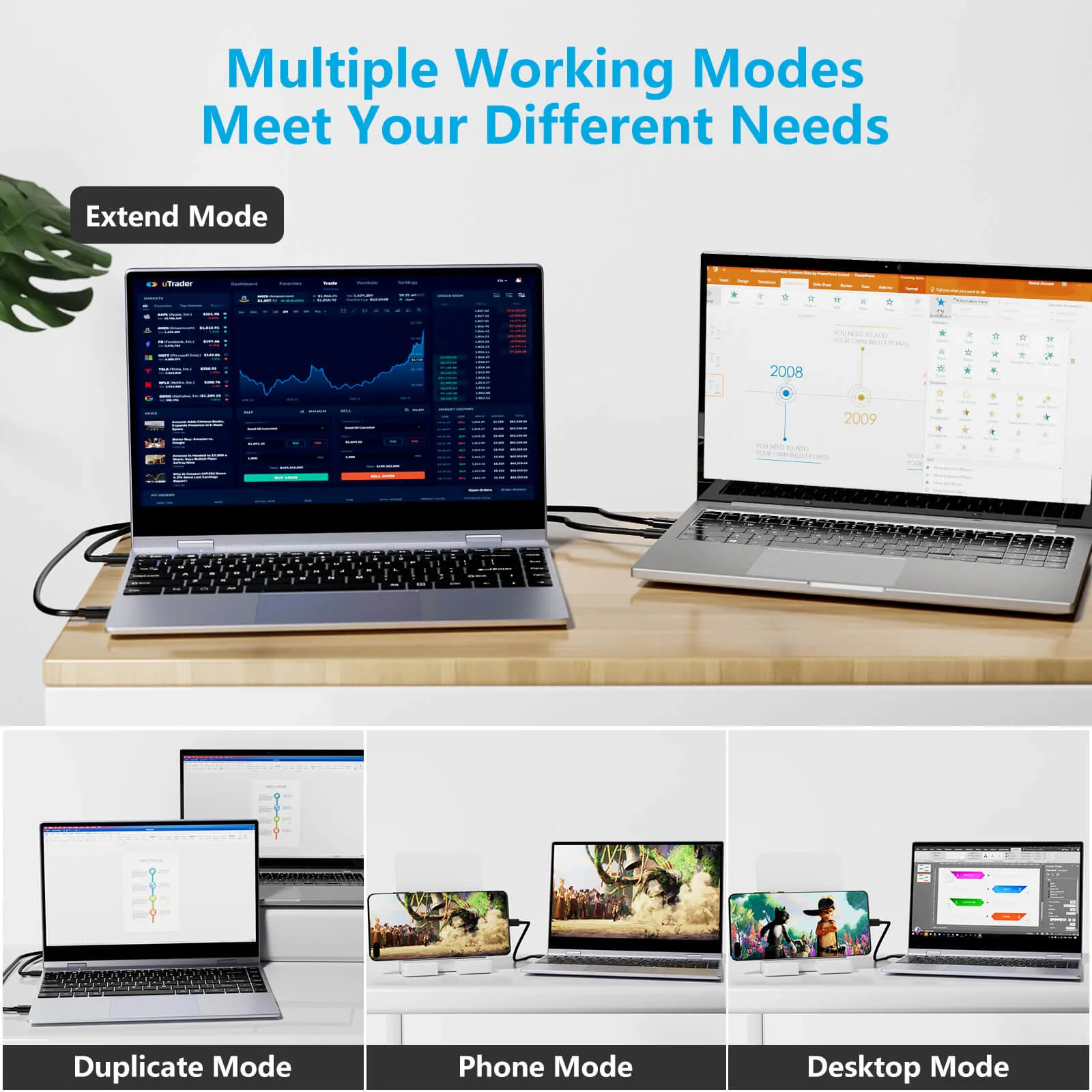
A Dopesplay lapdock is not a laptop with its own processor. It is a portable monitor, keyboard, trackpad, and battery bundled into a laptop-shaped shell, and it borrows its computing power from whatever you plug into it. The most talked-about use case is Samsung DeX: when a compatible Galaxy phone connects over USB-C, DeX transitions the phone's interface into a windowed desktop layout with a taskbar and app drawer in about three seconds, according to Dopesplay's brand partner documentation.
Because the lapdock relies on standard USB-C with DisplayPort Alt Mode and HDMI, it is not limited to Samsung phones. The same panel can accept a signal from a Windows or Mac laptop that needs a second screen, a mini PC, or a game console such as a PlayStation 5, Xbox, or Nintendo Switch. Some models add WiFi and Bluetooth for wireless setups, which cuts down on cable clutter when you are working from a hotel desk or a coffee shop table.
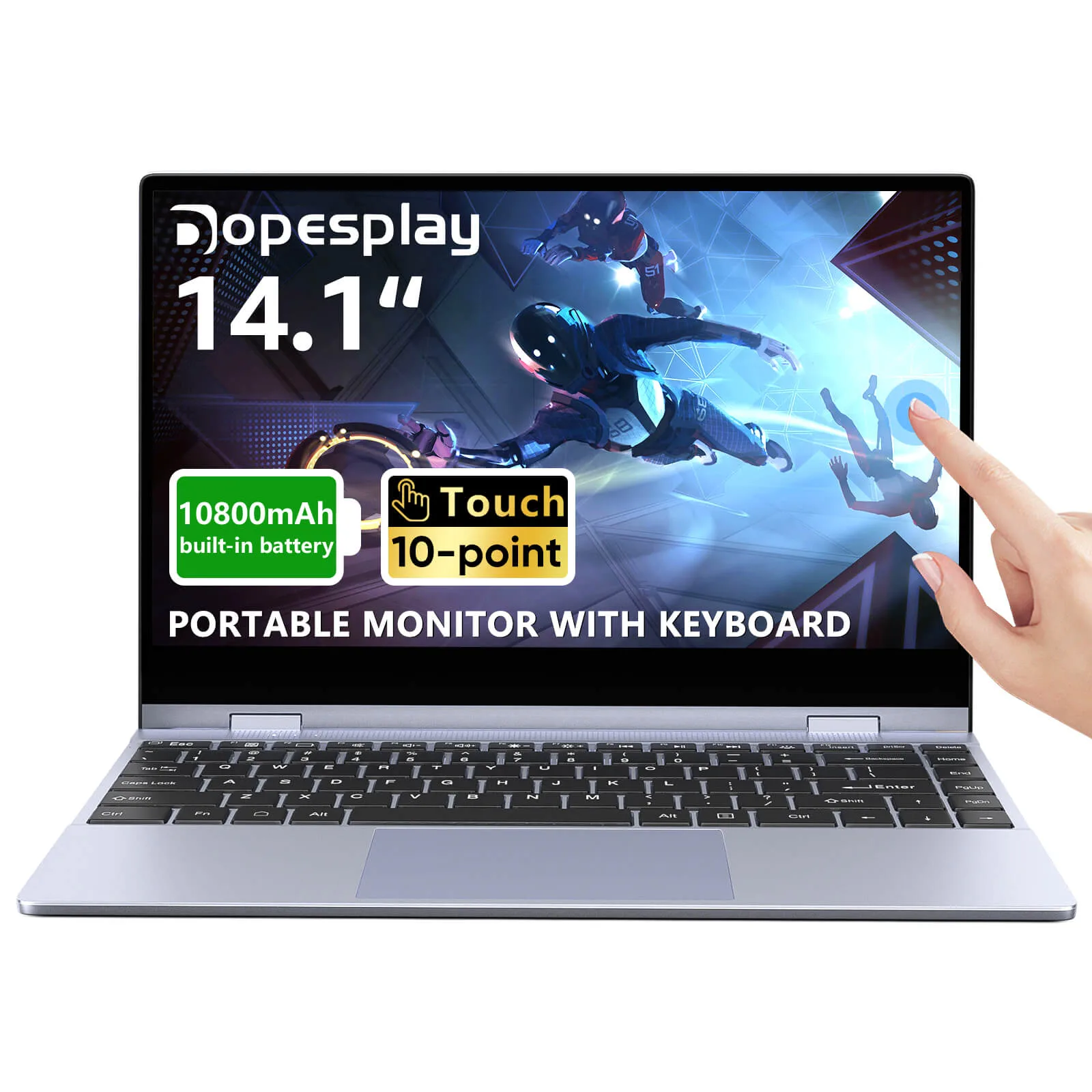
What makes the Dopesplay lineup distinct from a bare portable monitor is the amount of hardware packed into the panel itself: a 10-point touchscreen, a full QWERTY keyboard with function keys, a trackpad, four built-in speakers, and a 360-degree hinge that lets the screen fold flat or stand up like a tablet. None of that requires the connected device to supply extra peripherals, which is the main appeal for anyone trying to travel light.
Dopesplay DR148 Touchscreen Lapdock
14.1-inch FHD touchscreen, built-in keyboard and trackpad, and a 10800mAh battery for unplugged productivity sessions.
View Product DetailsSetting up a Dopesplay lapdock step by step
Most of the setup friction people worry about turns out to be a single-cable connection, not a configuration project. Here is the general sequence based on the manufacturer's documented workflow for DeX-compatible phones and standard USB-C/HDMI devices:
- Charge the lapdock first. The built-in battery needs its own charge cycle before your first trip; treat it like any other rechargeable device, not just a passthrough monitor.
- Pick the right cable for your device. Use USB-C to USB-C for DeX-supported phones and most modern laptops, or HDMI for consoles and older laptops that lack USB-C video output.
- Connect and wait for the desktop switch. On a DeX-supported phone, the interface should shift to a windowed desktop layout with a taskbar within a few seconds of plugging in.
- Adjust the hinge and touch settings. Use the 360-degree hinge to set a comfortable viewing angle, and enable touch input if your workflow benefits from tapping the screen directly instead of using the trackpad.
- Use reverse charging when you need it. The lapdock's battery can charge your connected phone or tablet back through the USB-C port, which is useful when you are working away from an outlet.
If you are moving from a traditional laptop for the first time, budget a short adjustment period. A phone-powered desktop is genuinely productive for writing, email, spreadsheets, and browser-based work, but it is still governed by your phone's processor and app ecosystem, not a full desktop operating system.
Insider tips for getting the most out of a portable lapdock setup
A few practical habits separate people who love their lapdock from people who abandon it after a week. First, treat the reverse-charging feature as a planning tool, not a backup: top off the lapdock's own battery overnight so it has enough capacity left to charge your phone during a long work session the next day. Second, use the trackpad for precision tasks like spreadsheet cell selection and the touchscreen for quick navigation, rather than picking one input method exclusively.
User testimonials describe common workflows such as document editing and email management while traveling, with aggregated reviews describing the transition from phone to laptop as seamless: plug in the USB-C cable, open DeX, and within three seconds the interface switches to a windowed desktop layout with a taskbar. That kind of quick-start experience is the main reason people keep a lapdock in their travel bag instead of a second laptop.
Getting console and mini PC connections right
If you are pairing the lapdock with a game console rather than a phone, HDMI is generally the more reliable path since it does not depend on DisplayPort Alt Mode support. Built-in speakers mean you do not need a separate audio setup for casual gaming sessions in a hotel room, though serious competitive gamers will still want headphones for the lowest latency and best positional audio.
Common mistakes to avoid when buying a lapdock
- Assuming every phone supports DeX-style desktop mode. The seamless desktop switch is specific to Samsung DeX-compatible Galaxy phones; other Android phones and iPhones will typically mirror the screen rather than switch to a true windowed desktop.
- Ignoring battery math. A larger built-in battery adds weight. If you mostly use the lapdock plugged into wall power at a desk, the extra capacity may matter less than portability.
- Skipping the cable check. Not every USB-C cable supports DisplayPort Alt Mode video output; a charging-only cable will not carry a display signal.
- Expecting laptop-grade multitasking. The lapdock is a display, input, and power hub, not a processor. Heavy video editing or resource-intensive software still depends entirely on the connected device.
- Overlooking reverse charging as a feature. Some buyers only evaluate the screen and keyboard, missing that the built-in battery can also top off a phone in the field.
Dopesplay lapdock models compared
Dopesplay's lineup centers on the same core idea, a touchscreen lapdock shell with an integrated keyboard and trackpad, but the battery capacity and screen size vary by model. Here is how the two most commonly documented configurations stack up.
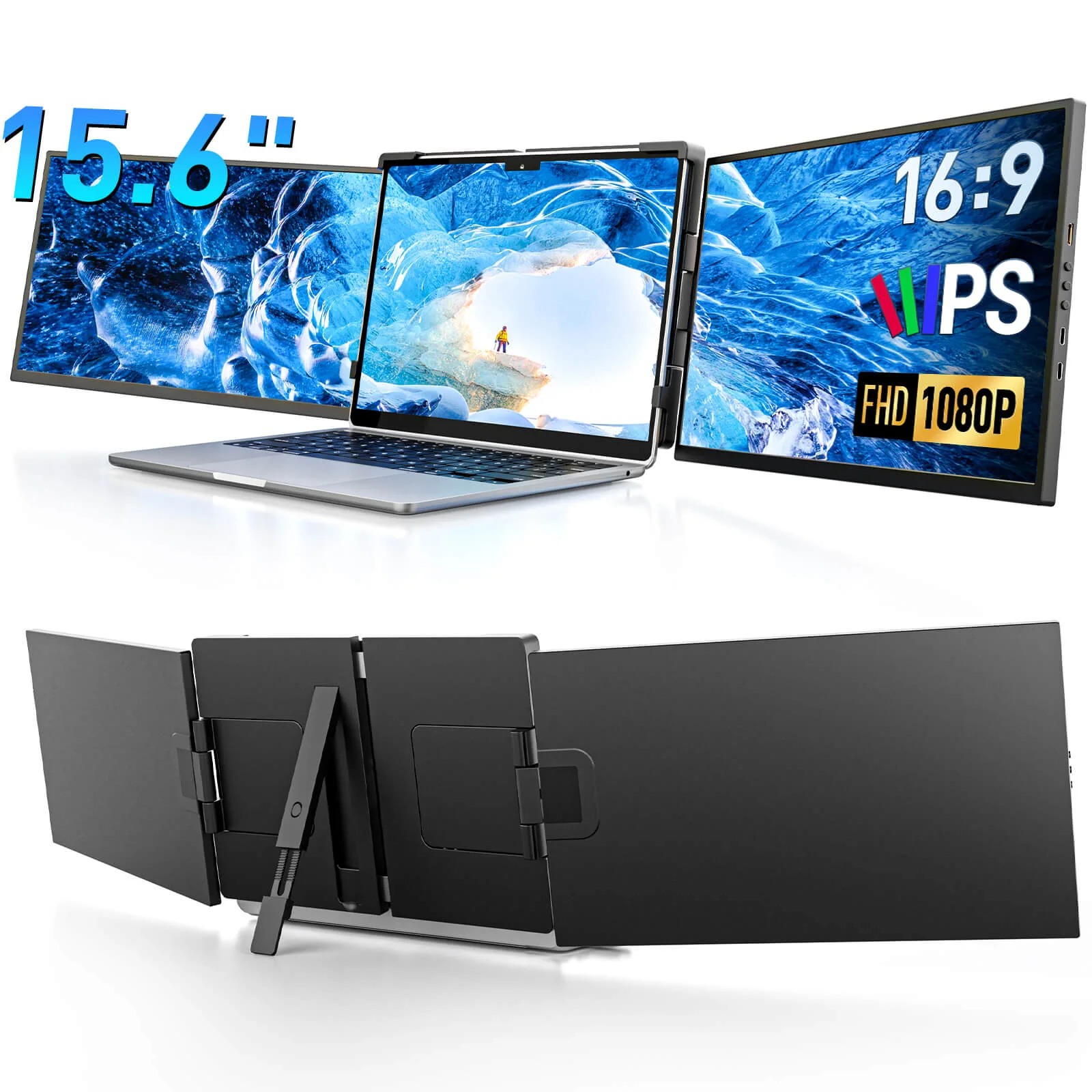
Dopesplay DR148 14.1" Touchscreen Lapdock
What We Like
- Touchscreen adds a second way to navigate beyond the trackpad
- Reverse charging doubles as a backup battery for your phone
- Works across DeX phones, laptops, mini PCs, and consoles
What to Consider
- Desktop-style multitasking is only as capable as the connected phone or device
- Non-DeX phones will mirror rather than switch to a true desktop layout
- Adds bulk versus a phone alone, even if it is lighter than a laptop
Aggregated user feedback on the DR148 points to travel productivity as the strongest use case, with reviewers describing document editing and email management on the go as the most common workflow once the lapdock is paired with a DeX-supported phone.
| Feature | DR148 14.1" (10800mAh) | Compact model (5000mAh) |
|---|---|---|
| Screen size | 14.1" FHD IPS touchscreen | Not publicly specified |
| Battery capacity | 10800mAh | 5000mAh |
| Rated runtime | 4-5 hours continuous video playback | Over 6 hours continuous use |
| Reverse charging | Yes, via USB-C | Yes, via USB-C |
| Best for | Touch input and the largest screen | Longer unplugged sessions in a smaller footprint |
Alternatives worth a look before you decide
A Dopesplay lapdock is not the only way to build a phone-powered or portable desktop setup, and it is fair to weigh it against adjacent gear before checking out. If you mainly need a second screen without the integrated keyboard and battery, our portable monitor guide covers standalone panel options that pair with a laptop you already own. If your priority is simply keeping every device charged on the road rather than a built-in display, our portable power station review looks at dedicated battery packs built for that job. And if you still travel with a traditional laptop but want a faster, more reliable charge, our laptop charger customer reviews roundup is a useful companion read.
What to look for when buying a portable lapdock
Battery capacity versus portability
Bigger built-in batteries, like the 10800mAh option, buy you longer unplugged sessions but add weight to the shell. If you are usually near an outlet, a smaller-capacity model may be the more practical carry.
Device compatibility before purchase
Confirm whether your phone supports Samsung DeX, whether your laptop's USB-C port carries a video signal, and whether your console needs HDMI. USB-C with DisplayPort Alt Mode and HDMI together give the widest coverage across laptops, mini PCs, phones, and consoles including PlayStation 5, Xbox, and Nintendo Switch.
Touch input and ergonomics
A 10-point touchscreen and a 360-degree hinge add flexibility for tablet-style use, note-taking, or presenting, on top of the standard keyboard-and-trackpad layout.
How We Chose
Our selection criteria weighed display specifications, battery capacity and rated runtime, connectivity coverage across phones, laptops, mini PCs, and consoles, and aggregated user feedback on real-world setup and travel use, all sourced from Dopesplay's own product documentation and independently published user testimonials.
The verdict on the Dopesplay lapdock
The Dopesplay lapdock is a strong pick if you already own a Samsung DeX-compatible phone, or you regularly connect a laptop, mini PC, or console to a portable screen and want the keyboard, trackpad, and battery bundled in one shell. It is a poor fit if you need laptop-grade processing power on its own, since the lapdock supplies the display and input, not the computing. Choose the 14.1" 10800mAh model for the largest screen and touch input, or the 5000mAh compact model if unplugged runtime and a smaller footprint matter more than screen size.
Check Current Price at DopesplayReferences
This review is for general informational purposes and reflects publicly available manufacturer specifications and aggregated user testimonials at the time of writing. Device compatibility, especially Samsung DeX support and USB-C video output, varies by phone, laptop, mini PC, and console model, so confirm compatibility with your own hardware before purchasing. Velextrics may earn a commission if you buy through links on this page; this does not affect our evaluation.
Recommended for you
 TerraMaster NAS Review 2026: Best F-Series Model for Your Setup
 Tough On Accessories Review 2026: 4 Best Rugged Picks
 BeaverKeys Review 2026: Best Affordable Keyboard Store?
 Goblintechkeys Review 2026: Custom Keycaps & Keyboards
 Level 2 EV Charger Guide: How to Pick the Best One (2026)
 EVIQO EV Charger Review 2026: Worth Buying? Full Guide